
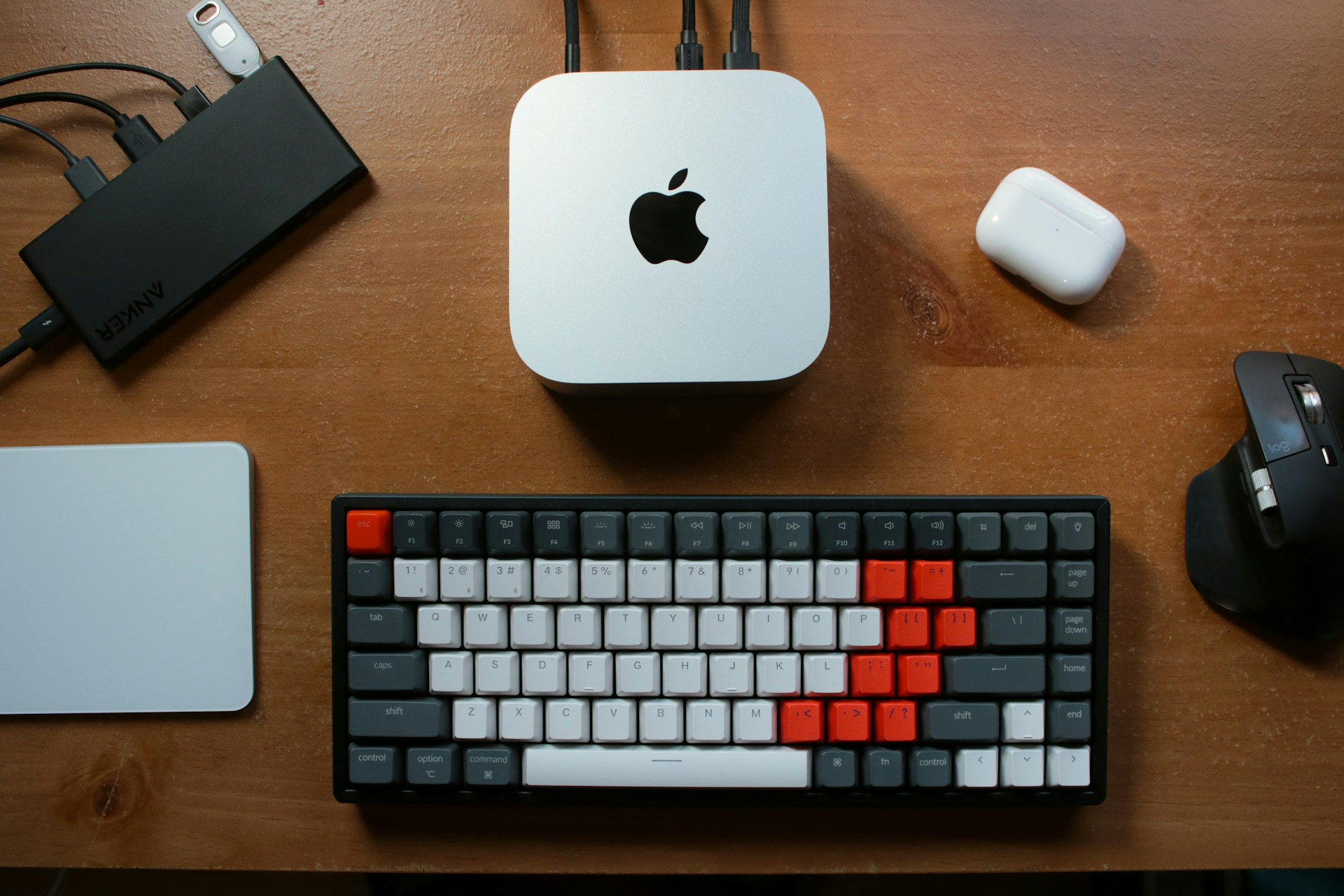
In-housing your AI provider for coding purposes has never been easier or more reliable. Infersec turns your hardware into an OpenAI-compatible LLM inferencing API, and connects anything from a single Mac Mini to a fleet of Mac Studios to it - allowing you to harness this power for coding agents such as Opencode, Crush or Claude Code. You can support even a couple of coders on a single modern Mac Mini, given it has enough memory and you go with a middle-of-the-road model. This guide walks you through the setup.
We're going to assume you already have an account - if you don't, consider heading over to our Early Access signup page. Once you're logged in, head to the Models page to create a model. You want to select something that's going to fit in your devices' memory, perform well enough that you're not waiting minutes for a response, and that is capable of reliably handling your requests and tool calls. You can see what models we recommend by heading over to our Recommended Models page. A safe bet is usually Qwen Coder or one of the V3 Qwen models.
Once you've created the model, head to the Sources page and create a new source for each device you're going to connect to Infersec. Each source will need the model attached to it, and will provide you with some options for commands to run to start the source. You'll want to configure an API Key as well, as this is required for Conduit (our compute client application) to connect to your Infersec account. For Macs we usually recommend llama.cpp as the engine.
Running the Conduit application on your target device will launch a connection back to Infersec, after which it'll receive a model configuration payload. The application will then download the model data if it's not already present, and will attempt to launch the engine. Make sure you have the engine software installed correctly before running Conduit.
When the software has started, you can monitor its status inside the console dashboard. You'll see when it's ready - it'll say "Online". From there you can move on to the final stage of the setup - creating an Endpoint.
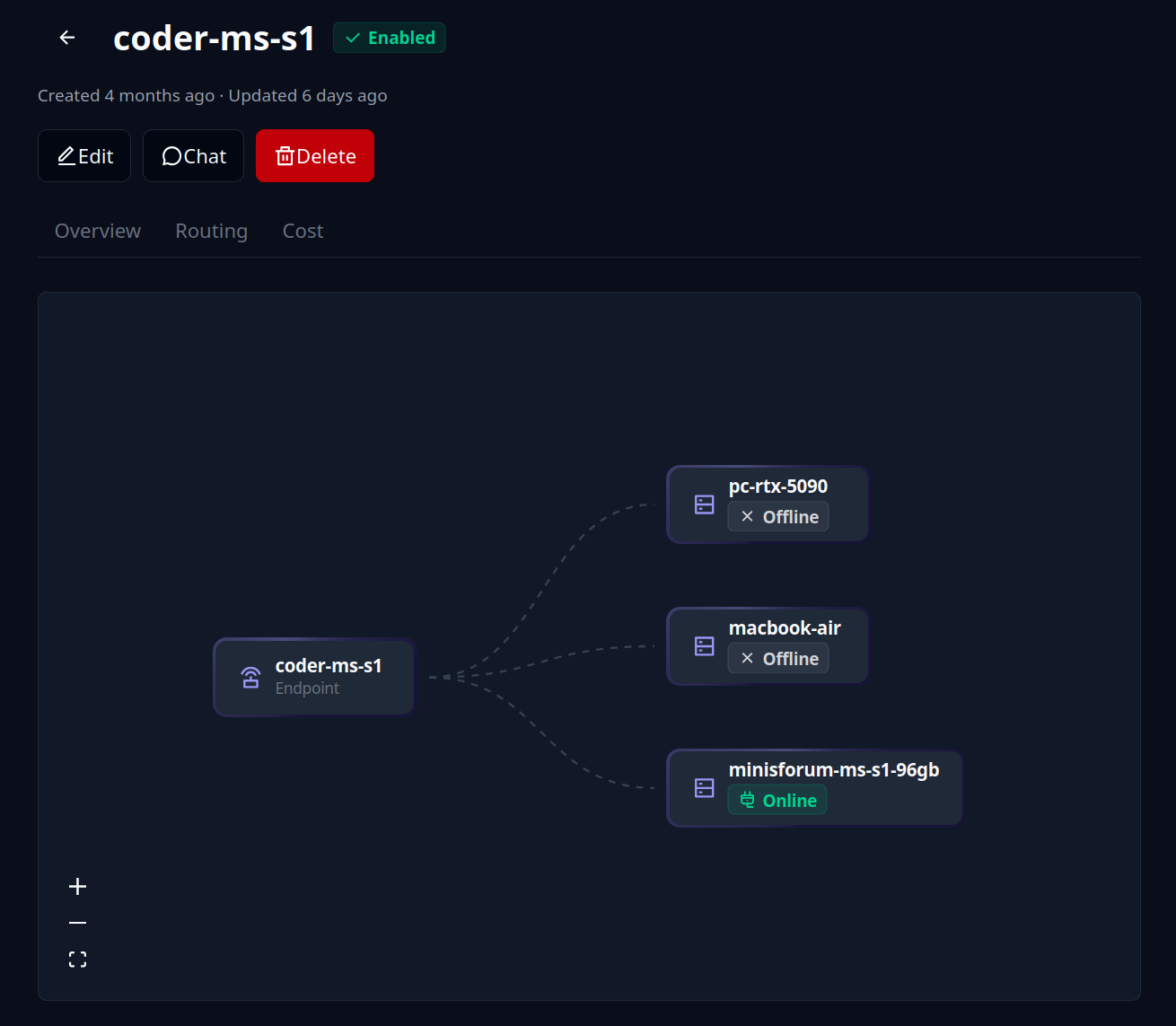
Head over to the Endpoints page and create a new one. Select all the sources you just set up, and choose your routing method. Create the endpoint and you'll be presented with various configuration details for how to connect to it. You'll need another API key for this (we recommend creating a separate one for this use) - you'll take that and the relevant connection URL to use with your coding agent. For tools like Opencode, you can either take the Opencode-specific config lines or the OpenAI base URL (you'll need to append /v1 for Opencode and similar tools).
Here's what the Opencode configuration looks like:
{
    "$schema": "https://opencode.ai/config.json",
    "provider": {
        "infersec-coder-ms-s1": {
            "npm": "@ai-sdk/openai-compatible",
            "name": "Infersec",
            "options": {
                "baseURL": "https://api.infersec.ai/api/inferencing/<endpoint-id>/oai/v1",
                "apiKey": "<api-key>"
            },
            "models": {
                "default": {
                    "name": "Default",
                    "limit": {
                        "context": 256000,
                        "output": 32000
                    }
                }
            }
        }
    }
}
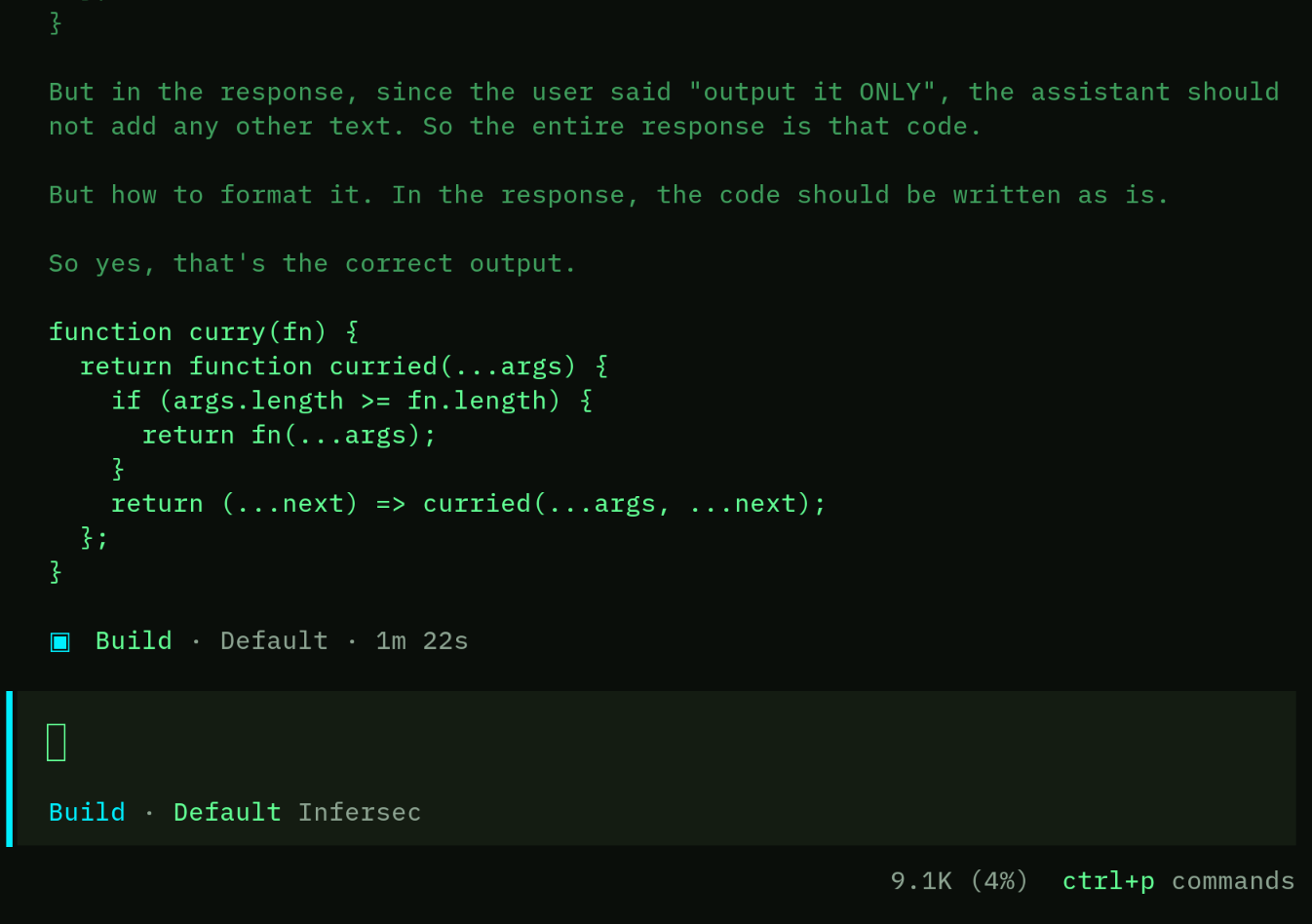
Once you open Opencode and select the Infersec model, you'll immediately be able to code against your own hardware - at scale!